Windows 2012 Hosting - MVC 6 and SQL 2014 BLOG

Tutorial and Articles about Windows Hosting, SQL Hosting, MVC Hosting, and Silverlight Hosting

WebMatrix Hosting :: SEO Report In Microsoft WebMatrix

clock July 31, 2013 09:06 by author Ben

WebMatrix was built to streamline Web development and make it easy, whether you're getting started or you just want to get things done. It lets you focus on what’s important — your Web site.

SEO (Search Engine Optimization) is the effort to the make your website on the first position on the search engines like google, yahoo, bing, etc.


WebMatrix SEO Report feature that has Allows you to check the web script so that you can order search engine optimization friendly. In the example I was trying to make a simple script report.

Open Web Matrix, select Reports on the left menu.


After that there will be a form of SEO report settings. I let it default.


After setting Report saved, you can directly check validation of your web site. If anyone should be in WebMatrix optimization will give you a warning.


And know you can see it work! :)


Reporting Service (SSRS) 2008 Hosting :: SSRS Report Execution and Performance Enhancements

clock July 22, 2013 06:17 by author Mike

Reporting Service (SSRS) 2008 R2 allows us to execute reports in 3 modes:

  1. On Demand
  2. From Cache
  3. From Snapshots


On Demand

  • This is normal approach that we follow, by hitting a report server URL. Each time a report is run, data is returned from the database server and rendered to the report.
  • This approach ensures that our report is update and fresh.
  • The downside of this approach is that, if n users open up this report on their browsers, queries on the report are executed n times.
  • Thus this approach at times might slow down the server.

Cache

  • One of the performance enhancements techniques is to cache a report when it is initially run.
  • This means that if another user requests for the report, the same report is served to the user from the cache.
  • This avoids people querying the database server from each report rendering.
  • To make sure that people do not receive too much stale data, we can set a time to invalidate a cache.
  • This is a good performance enhancement technique for slow running reports.

Snapshots

  • Report snapshots are created at a particular schedule for certain parameters.
  • Please note that parameters cannot be changes on snapshot reports.
  • SSRS 2008 R2 allows to schedule the snapshot creation times.
  • Users can directly render a report from a snapshot. However please note that not all reports can have snapshots, especially the ones that prompt users for credentials.


ASPHostPortal.com Proudly Announces ASP.NET MVC 5 Hosting

clock July 12, 2013 08:19 by author Mike

ASPHostPortal.com is a premiere web hosting company that specializes in Windows and ASP.NET-based hosting, proudly announces the new Microsoft product, ASP.NET MVC 5 hosting to all new and existing customers.

ASP.NET MVC 5 is the latest update to Microsoft's popular MVC (Model-View-Controller) technology - an established web application framework. MVC enables developers to build dynamic, data-driven web sites. ASP.NET MVC 5 adds sophisticated features like single page applications, mobile optimization, adaptive rendering, and more. Here are some new features of ASP.NET MVC 5:

- ASP.NET Identity
- Bootstrap in the MVC template
- Authentication Filters
- Filter overrides

“We pride ourselves on offering the most up to date Microsoft services. We're pleased to launch this product today on our hosting environment” said Dean Thomas, Manager at ASPHostPortal.com. “We have always had a great appreciation for the products that Microsoft offers. With the launched of ASP.NET MVC 5 hosting services, we hope that developers and our existing clients can try this new features.”

ASPHostPortal.com is one of the Microsoft recommended hosting partner that provide most stable and reliable web hosting platform. With the new launch of ASP.NET MVC 5 into its feature, it will continue to keep ASPHostPortal as one of the front runners in the web hosting market. For more information about new ASP.NET MVC 5, please visit http://www.asphostportal.com.

About ASPHostPortal.com:
ASPHostPortal.com is a hosting company that best support in Windows and ASP.NET-based hosting. Services include shared hosting, reseller hosting, and sharepoint hosting, with specialty in ASP.NET, SQL Server, and architecting highly scalable solutions. As a leading small to mid-sized business web hosting provider, ASPHostPortal strive to offer the most technologically advanced hosting solutions available to all customers across the world. Security, reliability, and performance are at the core of hosting operations to ensure each site and/or application hosted is highly secured and performs at optimum level.


Windows 2008 Hosting Tips :: Installing IIS 7.5 on Windows Server 2008/2008 R2

clock July 1, 2013 09:05 by author Mike

IIS (Internet Information Services) Version 7.5 – is a web server application and a set of feature extension modules created by Microsoft for use with Microsoft Windows. Released with Windows Server 2008 R2 and Windows 7. The installation procedure to install IIS 7.5 is slightly different depending on which operating system you are using, so you will need to make sure you follow the correct method below for your operating system.

Follow this steps to install:

  • Navigate to Start\Control Panel\Administrative Tools and open Server Manager.
  • In the tree menu on the left, select Roles.
  • In the main window, find the sub-section Roles Summary (it should be at the top) and click Add Roles.
  • On the pop-up window, read the security warnings and then select Next.
  • Select Web Server (IIS) from the list of check box options.
  • After reading the introduction to IIS, click Next to continue
  • From the check boxes, find the Application Development section and select CGI. This will allow us to install PHP later without any modifications.


  • Click Next to continue.
  • Click Install to begin the installation.
  • After installation has finished, click Close.

To check the installation, you can follow this steps:
- Navigate to Start\Control Panel\Administrative Tools and open Internet Information Services (IIS) Manager.


If it's installed properly you'll be introduced with the IIS Manager window, shown below.

That's it, IIS 7.5 is now installed and ready to be put into service.


SQL Server 2008 R2 Hosting :: Tips How to Restore Database with SQL Server 2008 R2

clock June 28, 2013 07:38 by author Ben

SQL Server 2008 R2 delivers several breakthrough capabilities that will enable your organization to scale database operations with confidence, improve IT and developer efficiency, and enable highly scalable and well managed Business Intelligence on a self-service basis for your users.

This is the tips to restore your database in sql server 2008 :

You need to select the backups which you need to restore from the backup set list.


First, thing to notice here is, it takes a tail-log backup of the source database.
The Backup Sets list does not list all backup sets available in the media, it only lists backups of the selected database:


Also, it is showing only the latest backups since last FULL database backup, just like selecting database as source in earlier versions. Older backup can be restored via "Timeline…", which is self-explanatory:


And to make it complete, it also has a "Verify Backup Media" button. Enjoy it! :)


IIS 7.5 Hosting :: Configuring Pinging to Avoid Terminating Processes

clock June 17, 2013 14:01 by author Ben

IIS monitors the worker processes health by sending a periodic request the worker processes. This pinging is to ensure that if the worker processes responding the incoming requests in timely manner. If the worker process does not respond in a timely manner, IIS terminates the process after a specific number of ping.  Now, consider you are debugging your web application by attaching w3wp.exe from Visual Studio.  During debugging, it might take a long to find out result of debugging and as an out come, execution is on hold as you are pausing around with some breakpoints or playing around the code.

In between your debugging, IIS sending a ping to check worker process health and found it’s not responding, as you are holding the execution around breakpoint or other operation with in visual studio. Resulting of that, IIS terminates the process and you will get error message “The web server process that was being debugged has been terminated by Internet Information Services” .

Now think about it,  you are middle of a debugging session and the worker process process terminates. This will stop your entire debugging. This is quite frustrating and irritating when you are in a middle of debugging and debugger terminates because of the worker process.

Here is the solution:

Open the application pool from IIS Manager and navigate to “Advanced Settings” from the context menu of selected application pool.

This will open “Advanced settings” dialog window. Move to “Process Model” section

By default, you will find,

Ping Enabled = True with Ping Maximum Response Time = 90s and Ping Period = 30s

If worker process responding with in the specified time frame, IIS will keep the worker process alive. But considering the debugging time, the maximum response time is very less.

What you can do over here is, increase the Ping Maximum Response Time  with some values which can ensure worker process will get a response in between health check.

Or, Disable the Pinging by Ping Enabled = False  . By this setting IIS will stop pining your worker process for health checkup.

Note :  This is recommended only for your development environment.  Don’t disable it on Test, staging or Production environments. Worker process health monitoring, terminating processes when there is no timely request are very crucial for application performance.


Tip IIS 8.0 Hosting :: Enabling SSL on IIS 8.0 Using Self-Signed Certificates

clock June 10, 2013 12:27 by author Ben

SSL enables browsers to communicate with a web-server over a secure channel that prevents eavesdropping, tampering and message forgery.  You should always use SSL for login pages where users are entering usernames/passwords, as well as for all other sensitive pages on sites (for example: account pages that show financial or personal information). 

Configuring SSL on Windows with previous versions of IIS has been a pain.  Figuring out how to install and manage a certificate, and then associate it with a web-site, is something I bet most web developers don't know how to enable.

The good news is that IIS 8.0 makes it radically easier to configure and enable SSL.  IIS 8.0 also now has built-in support for creating "Self Signed Certificates" that enable you to easily create test/personal certificates that you can use to quickly SSL enable a site for development or test purposes. 

Using IIS 8.0 you can SSL enable an existing web site in under 30 seconds.  The below tutorial demonstrates how to-do this.

Step 1: Create a New Web Site

We'll start by creating a new web-site using the new IIS 8.0 admin tool.  This admin tool is a complete re-write of the previous IIS admin tool (and was written entirely in managed code using Windows Forms), and provides a more logical organization of web features.  It provides a GUI admin experience for all ASP.NET and IIS settings.
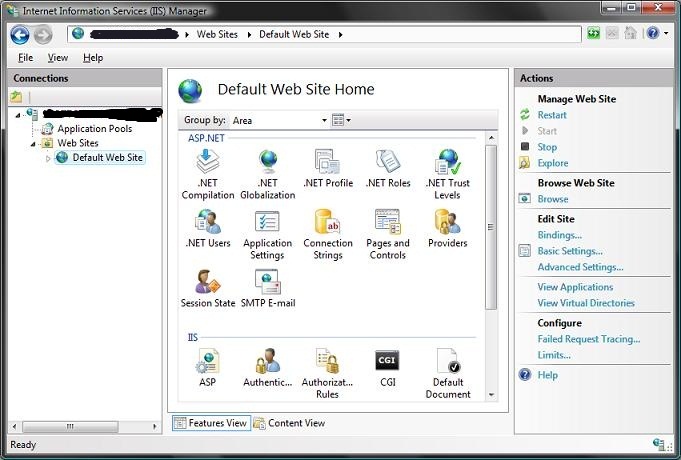
To create a new site on the box, right click on the "Web Sites" node in the left hand tree-view pane and choose the "Add Web Site" context menu option.  Enter the appropriate details to create a new web-site:
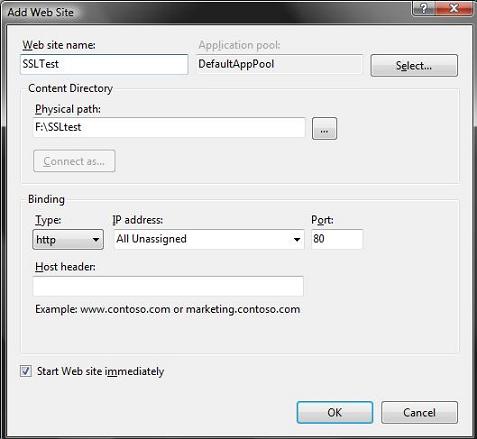
One nice feature of IIS on Windows Vista is that you can now have an unlimited number of sites on a box (previous versions of IIS on Windows Client only allowed 1 site).  The 10 simultaneous request limitation on Windows Client versions of IIS also no longer exists with IIS 8.0.

Once we've completed the above steps, we will now have a brand new site running on our IIS web-server.

Step 2: Create a new Self Signed Certificate
Before binding SSL rules to our new site, we need to first import and setup a security certificate to use with the SSL binding. 

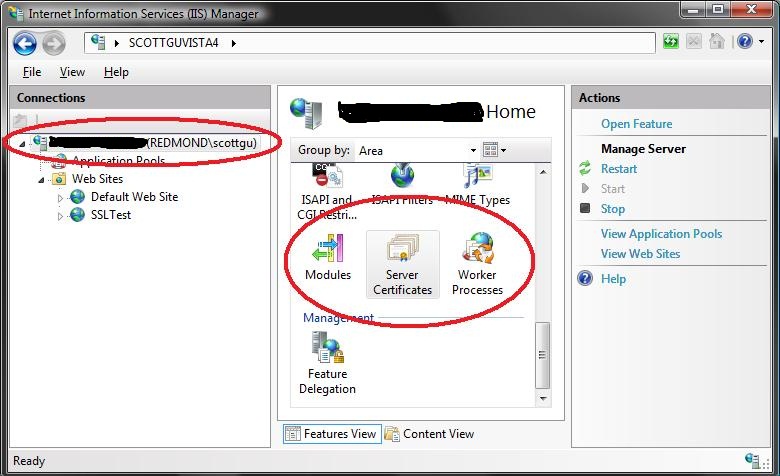
Certificates are managed in IIS 8.0 by clicking the root machine node in the left-hand tree-view explorer, and then selecting the "Server Certificates" icon in the feature pane on the right:
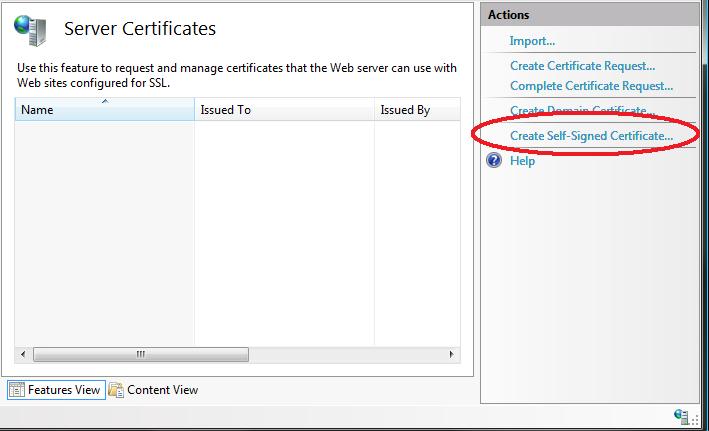
This will then list all certificates registered on the machine, and allow you to optionally import and/or create new ones.

I could optionally go to a certificate authority like Verisign and purchase a certificate to import using this admin UI.  Alternatively, I can create a "self-signed certificate" which is a test certificate that I can use during the development and testing of my site.  To-do this, click the "Create Self-Signed Certificate" link on the right-hand side of the admin tool:
Enter a name to use for the certificate (for example: "test") and hit ok.  IIS8 will then automatically create a new self-signed crypto certificate for you and register it on the machine:
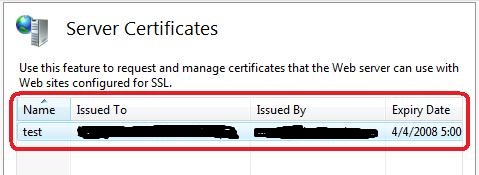
Step 3: Enable HTTPS Bindings for our New Site
To SSL enable the web-site we created earlier, select the web-site node in the left-hand tree-view, and the click the "Bindings" link in its "actions" pane on the right-hand side of the screen:
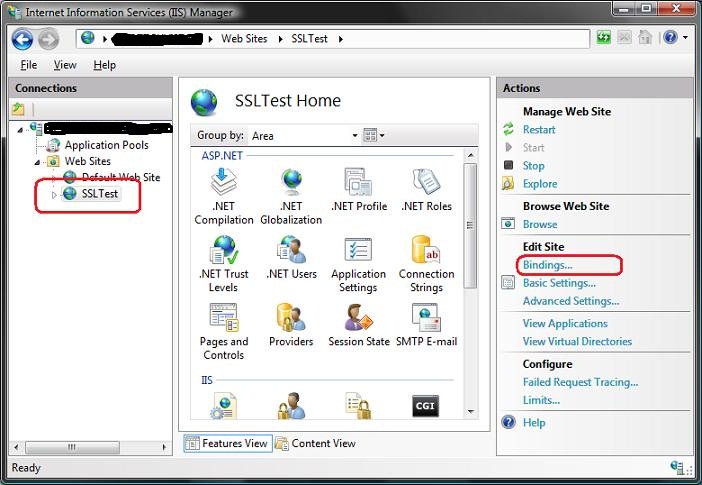
This will then bring up a dialog that lists all of the binding rules that direct traffic to this site (meaning the host-header/IP address/port combinations for the site):
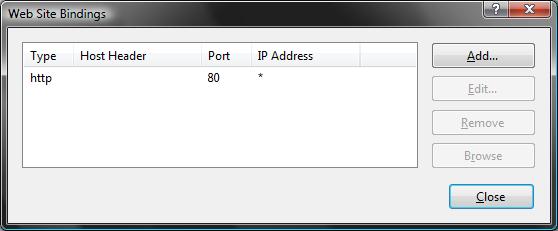
To enable SSL for the site, we'll want to click the "Add" button. This will bring up an "add binding" dialog that we can use to add HTTPS protocol support.  We can select the self-signed certificate we created earlier from the SSL certificate dropdownlist in the dialog, and in doing so indicate that we want to use that certificate when encrypting content over SSL:
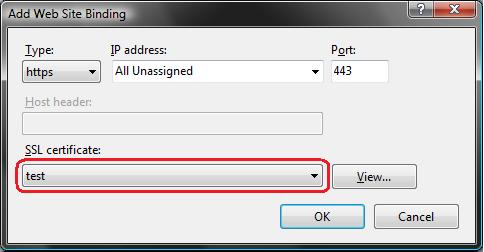
Click ok, and we now have SSL enabled for our site:

Step 4: Test out the Site
Add a "default.aspx" page to the site, and then try and hit it with the browser by typing https://localhost/default.aspx (note the usage of "https" instead of "http" to indicate that you want to connect over SSL).

If you are using IE8, you'll likely see this anti-phishing error message kick in
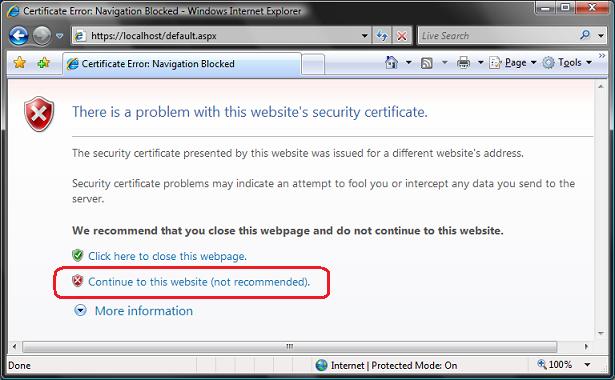
Don't panic if this happens - it is just IE being helpful by suggesting that a self-signed certificate on your local machine looks suspicious. Click the "Continue to this website" link to bypass this security warning and proceed to the site.  You'll find that your default.aspx page is now running protected via SSL:
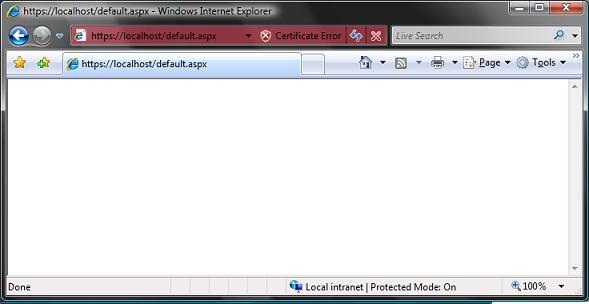
You are all done. :-)

Appendix: A Few Last SSL Notes
A few last SSL related notes:
The IIS 8.0 admin tool has an "SSL Settings" node that you can select for each site, directory or file that allows you to control whether that particular resource (and by default its children) requires an SSL request in order to execute.  This is useful for pages like a login.aspx page, where you want to guarantee that users can only enter their credentials when they are posting via an encrypted channel. If you configure the login.aspx page to require SSL, IIS 8.0 will block browsers from accessing it unless they are doing so over SSL.

Within an ASP.NET page or handler, you can programmatically check whether the current request is using SSL by checking the Request.IsSecure property (it will return "true" if the incoming browser request is over SSL).

You can set the "requireSSL" attribute on the <forms> configuration section within web.config files to have ASP.NET's forms-authentication system ensure that forms-authentication cookies are only set and used on SSL enabled pages and URLs.  This avoids the risk of a hacker trying to intercept the authentication cookie on a non-SSL secured page, and then trying to use a "replay attack" from a different machine to impersonate a user.


Visual Studio Tip :: Configure Code Analysis in Visual Studio

clock June 7, 2013 07:53 by author Ben

I like well-written code, and I especially like it when I've written it. But I don't always live up to my own expectations. So I've used various tools (FxCop, CodeRush, ReSharper) to give me some objective feedback on the quality of my code. Starting with Visual Studio 2010, Microsoft built the latest version of their tools into Visual Studio: Visual Studio 2012 Ultimate (and up) and Visual Studio 2012 Professional (and up). From Visual Studio's Analyze menu, you can select Run Code Analysis on individual projects or on your whole solution.

The code analysis tools will report on whether your code reflects best practices, based on a set of Microsoft's rules. You should realize, however, that just because Microsoft has a specific rule, it doesn't mean that you should write your code according to that rule.

For instance, Microsoft expects all of its projects to use the CLSCompliant attribute. This attribute causes the compiler to check for issues that would prevent your code's external API from being compatible with other .NET Framework code.

For instance, it's perfectly OK in C# to have two public methods with the same name but with different upper and lower case letters (e.g. Update() and uPDATE()). However, those method names would be indistinguishable in Visual Basic, which is why they would violate the CLSCompliant attribute.

However, you probably don't need the CLSComplaint attribute because (a) you're a single language shop, and (b) you probably wouldn't do anything that violates the CLSCompliant attribute anyway (I mean, really: Update and uPDATE?)

It's important, therefore, from the Analyze menu to select the Configure Code Analysis choice and pick the right rule set for you. The Microsoft All Rules choice is almost certainly not the choice you want. Instead, select the <Choose Multiple Rule Sets> option and check off the rule sets that appeal to you. This will let you, over time, remove the rule sets that flag issues you're not interested in.

If you're really committed, consider adding and removing rules from the rulesets themselves. To do that, from the File menu select Open | File and navigate to the folder that the ruleset files are kept in (For my installation of Visual Studio 2012, that's C:\Program Files (x86)\Microsoft Visual Studio 11.0\Team Tools\Static Analysis Tools\Rule Sets\). Opening a ruleset file in Visual Studio will allow you to check off which rules in the ruleset you want to keep and which you want to ignore.


IIS 7.5 Hosting - ASPHostPortal :: IIS 7.5 AppPool Identities

clock May 27, 2013 10:16 by author Ben

Windows 7 and Windows Server 2008 R2 ship with IIS 7.5. It's called Application Pool Identities. Application Pool Identities allows you to run Application Pools under an unique account without having to create and manage domain or local accounts. The name of the Application Pool account corresponds to the name of the Application Pool. The image below shows an IIS worker process (w3wp.exe) running as the DefaultAppPool identity.

Application Pool Identity Accounts
Worker processes in IIS 6 and 7 run as NETWORKSERVICE by default. NETWORKSERVICE is a built-in Windows identity. It doesn't require a password and it has only user privileges, i.e. it is relatively low-privileged. Running as a low-privileged account is a good security practice because then a software bug can't be used by a malicious user to take over the whole system. The problem is however that over time more and more Windows system services started to run as NETWORKSERVICE and services running as NETWORKSERVICE can tamper with other services running under the same identity. Because IIS worker processes run third-party code by default (Classic ASP, ASP.NET, PHP code) it was time to isolate IIS worker processes from other Windows system services and run IIS worker processes under unique identities. The Windows operating system provides a feature called "Virtual Accounts" that allows IIS to create unique identities for each of its Application Pools. Click here for more information about Virtual Accounts.

Configuring IIS Application Pool Identities
If you are running IIS 7.5 on Windows Server 2008 R2 you don't have to do anything. For every Application Pool you create the IIS Admin Process (WAS) will create a virtual account with the name of the new Application Pool and run the Application Pool's worker processes under this account. If you are running Windows Server 2008 you have to change the IdentityType property of the Application Pool you created to "AppPoolIdentity". Here is how:

  • Open the IIS Management Console (INETMGR.MSC).
  • Open the Application Pools node underneath the machine node. Select the Application Pool you want to change to run under an automatically generated Application Pool Identity.
  • Right click the Application Pool and select "Advanced Settings..."

Configure AppPool Identity

  • Select the "Identity" list item and click the button with the three dots.
  • The following dialog appears.

Select the Identity Type "ApplicationPoolIdentity" from the combo box

  • select the Identity Type "ApplicationPoolIdentity" from the combo box

Securing Resources
Whenever a new Application Pool is created the IIS management process creates a security identifier (SID) representing the name of the Application Pool itself, i.e. if you create an Application Pool with the name "MyNewAppPool" a security identifier with the name "MyNewAppPool" is created in the Windows Security system. From this point on resources can be secured using this identity. The identity is not a real user account however, i.e. it will not show up as a user in the Windows User Management Console. You can try this by selecting a file in Windows Explorer and adding the "DefaultAppPool" identity to its Access Control List (ACL).

  1. Open Windows Explorer
  2. Select a file or directory
  3. Right click the file and select "Properties"
  4. Select the "Security" tab
  5. Click the "Edit" and then "Add" button
  6. Click the "Locations" button and make sure you select your machine.
  7. Enter "IIS AppPool\DefaultAppPool" in the "Enter the object names to select:" text box
  8. Click the "Check Names" button and click "OK".

By doing this the file or directory you selected will now also allow the "DefaultAppPool" identity access. You can do this via the command-line using the ICACLS tool. The following example gives full access to the DefaultAppPool identity.

On Windows 7 and Windows Server 2008 R2 the default is to run Application Pools as this security identifier, i.e. as the Application Pool Identity. To make this happen a new identity type with the name "AppPoolIdentity" was introduced. If the "AppPoolIdentity" identity type is selected (default on Windows 7 and Windows Server 2008 R2) IIS will run worker processes as the Application Pool identity. With every other identity type the security identifier will only be injected into the access token of the process. If the identifier is injected content can still be ACLed for the AppPool identity but the owner of the token is probably not unique. Here is an article that explains this concept.

Accessing the Network
Using the NETWORKSERVICE account in a domain environment has a great benefit. Worker process running as NETWORKSERVICE access the network as the machine account. Machine accounts are generated when a machine is joined to a domain. They look like this: <domainname>\<machinename>$, for example: mydomain\machine1$ The nice thing about this is that network resources like file shares or SQL Server databases can be ACLed to allow access for this machine account.

What about AppPool identities?
The good news is that Application Pool identities also use the machine account to access network resources. No changes are required.


ASPHostPortal.com Expand Further into Asia with New Data Center in Singapore

clock May 21, 2013 07:51 by author Jervis

ASPHostPortal.com is a premiere web hosting company that specialized in Windows and ASP.NET-based hosting, announces their global expansion into Asia with a new datacenter location in Singapore. Advanced Windows 2008/R2 hosting and SQL hosting are available in the new Singapore-based datacenter.

This Singapore Data Center is supported with Multiple connections to major Internet backbone carriers via SingTel, SingNet, NTT Communication, Deutsche Telekom AG, Hurricane Electric and PCCW with OC-12 connections using BGP-4 routing protocol. This Singapore Data centre hosting is suitable to anyone who plans to do an online business in Asia or it is suitable to those who are targetting Asian markets.

“We have a large Asia customer base and we wanted to address their concerns of website latency issues due to data transport over long distances,” said Dean Thomas, Manager at ASPHostPortal. “We are serious in global hosting business and this is why we provide options to our customers to select from our three data centres.”

“From now, customer can select the data center location where they desire to host their website as part of our online ordering process and after successful order submission, the website account will be instantly setup. And we did not leave out our existing customers; we have a team ready to assist in datacenter location migration," added Dean Thomas. “We are extremely proud with this new launch of Asia data center.”

ASPHostPortal.com Singapore Data centre hosting server supports the newest Intel Xeon Processor with a minimum 8 GB RAMs and 2000 Mbps connection line. All the latest ASP.NET Framework  and SQL 2012 hosting are ready on all the servers. This data centre is provided as an addition to our two existing data centres, i.e. Houston (US Data center) and Amsterdam (European Data center).

ASPHostPortal.com is one of the Microsoft recommended hosting partner (http://www.microsoft.com/web/hosting/HostingProvider/Details/962) that provide most stable and reliable web hosting platform. With this new data center, it will continue to keep ASPHostPortal.com as one of the front runners in the web hosting market.

About ASPHostPortal.com:

ASPHostPortal.com is a hosting company that best support in Windows and ASP.NET-based hosting. Services include shared hosting, reseller hosting, and sharepoint hosting, with specialty in ASP.NET, SQL Server, and architecting highly scalable solutions. As a leading small to mid-sized business web hosting provider, ASPHostPortal.com strive to offer the most technologically advanced hosting solutions available to all customers across the world. Security, reliability, and performance are at the core of hosting operations to ensure each site and/or application hosted is highly secured and performs at optimum level.


About ASPHostPortal.com

We’re a company that works differently to most. Value is what we output and help our customers achieve, not how much money we put in the bank. It’s not because we are altruistic. It’s based on an even simpler principle. "Do good things, and good things will come to you".

Success for us is something that is continually experienced, not something that is reached. For us it is all about the experience – more than the journey. Life is a continual experience. We see the Internet as being an incredible amplifier to the experience of life for all of us. It can help humanity come together to explode in knowledge exploration and discussion. It is continual enlightenment of new ideas, experiences, and passions

 photo ahp banner aspnet-01_zps87l92lcl.png

Author Link

Corporate Address (Location)

ASPHostPortal
170 W 56th Street, Suite 121
New York, NY 10019
United States

Sign in