
July 10, 2014 09:20 by
 Ben
BenPowerShell is Microsoft’s new command-line shell and scripting language that promises to simplify automation and integration across different Microsoft applications and components. Database professionals can leverage PowerShell by utilizing its numerous built-in cmdlets, or using any of the readily available .NET classes, to automate database tasks, simplify integration, or just discover new ways to accomplish the job at hand.
Windows PowerShell commands can be a valuable addition to your SQL Server management tools. PowerShell is going to replace SQL Server Management Studio (SSMS) anytime soon, it can be used for a wide range of scripted management tasks. PowerShell can run T-SQL commands and also work with objects outside of the SQL Server database. You can use the SQL Server PowerShell Provider to navigate and manage SQL Server database objects, and PowerShell scripts can be run by SQL Agent.
Here is a working Windows PowerShell script to perform a FULL database backup against the Northwind database, storing the backup file in your file system.
[System.Reflection.Assembly]::LoadWithPartialName('Microsoft.SqlServer.SMO') | out-null
$s = New-Object ('Microsoft.SqlServer.Management.Smo.Server') "LOCALHOST\SQL2005_1"
#Create a Backup object instance with the Microsoft.SqlServer.Management.Smo.Backup namespace
$dbBackup = new-object ("Microsoft.SqlServer.Management.Smo.Backup")
#Set the Database property to Northwind
$dbBackup.Database = "Northwind"
#Add the backup file to the Devices collection and specify File as the backup type
$dbBackup.Devices.AddDevice("D:\PSScripts\backups\NWind_FULL.bak", "File")
#Specify the Action property to generate a FULL backup
$dbBackup.Action="Database"
#Call the SqlBackup method to generate the backup
$dbBackup.SqlBackup($s)
Since you won't be performing backups of just a single database, it would be better if we loop the entire script in a For-Each cmdlet iterating thru the Databases collection of the Server object.
[System.Reflection.Assembly]::LoadWithPartialName("Microsoft.SqlServer.SMO") | out-null
$s = new-object ("Microsoft.SqlServer.Management.Smo.Server") $instance
$bkdir = "D:\PSScripts\backups" #We define the folder path as a variable
$dbs = $s.Databases
foreach ($db in $dbs)
{
if($db.Name -ne "tempdb") #We don't want to backup the tempdb database
{
$dbname = $db.Name
$dt = get-date -format yyyyMMddHHmm #We use this to create a file name based on the timestamp
$dbBackup = new-object ("Microsoft.SqlServer.Management.Smo.Backup")
$dbBackup.Action = "Database"
$dbBackup.Database = $dbname
$dbBackup.Devices.AddDevice($bkdir + "\" + $dbname + "_db_" + $dt + ".bak", "File")
$dbBackup.SqlBackup($s)
}
}
There are a lot of different reasons why we need to restore databases, so there are a lot more options with restores than there are with backups. The easiest way to demonstrate a restore is to simply restore a database from a full backup, setting the option to overwrite the existing database.
Restore-SqlDatabase -ServerInstance TESTSQL -Database Northwind`
-BackupFile "E:\Backup\Northwind_db_20130420153024.bak" -ReplaceDatabase
Cheap SQL Hosting with ASPHostPortal.com
Providing the best security, compliance, performance, and managed service separates ASPHostPortal.com from other hosting companies. MS SQL server supports our commitment to providing service options the businesses that choose ASPHostPortal.com demand. Use the Promo Code "DBSQL" (without quotes) and receive double SQL Server Space!
January 21, 2014 05:19 by
Ben
If you are receiving following error:
TITLE: Connect to Server
Cannot connect to Database Server.
ADDITIONAL INFORMATION:
An error has occurred while establishing a connection to the server. When connecting to SQL Server 2008, this failure may be caused by the fact that under the default settings SQL Server does not allow remote connections. (provider: Named Pipes Provider, error: 40 – Could not open a connection to SQL Server) (Microsoft SQL Server, Error: 1326)
Now if SQL Server can be connected perfectly from local system but can not be connected from remote system, in that case firewall of the server where SQL Server is installed can be issue.

Follow instructions of this article to fix the issue.
Go to control panel >> Firewall Settings >> Add SQL Server’s Port to Exception List.
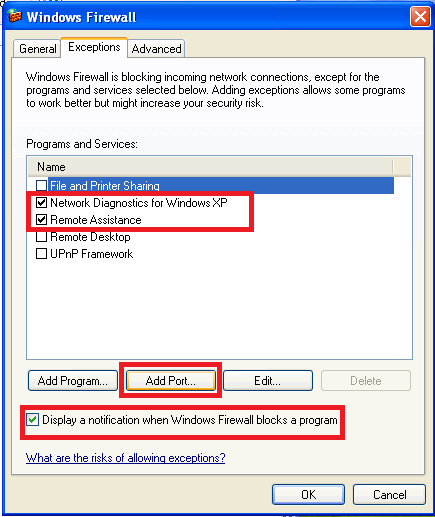
Click Add Port and fill this :
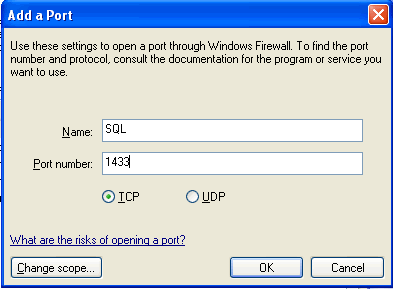
Now try to connect to SQL Server again. It will allow you to connect to server successfully.
About the Company
ASPHostPortal.com is a hosting company that best support in Windows and ASP.NET-based hosting. Services include shared hosting, reseller hosting, and sharepoint hosting, with specialty in ASP.NET, SQL Server, and architecting highly scalable solutions. As a leading small to mid-sized business web hosting provider, ASPHostPortal.com strive to offer the most technologically advanced hosting solutions available to all customers across the world. Come to the website to know more details.