Windows Server 2008 R2 is the most advanced Windows Server operating system yet, designed to power the next generation of networks, applications, and Web services. Use the links below to learn more about Windows Server 2008 R2. Windows Server 2008 R2 builds on the award-winning foundation of Windows Server 2008, expanding existing technology and adding new features to enable IT professionals to increase the reliability and flexibility of their server infrastructures. New virtualization tools, Web resources, management enhancements, and exciting Windows 7 integration help save time, reduce costs, and provide a platform for a dynamic and efficiently managed data center.
Here is the tips to fix blank RDP screen on Windows Cointainer :
Description:
While logging into Administrator account through RDP on a server after a reboot, a blank screen or recycled svchost.exe property page is shown. Rebooting the server does not resolve the issue.
Cause:
This problem is caused by corruption of the Administrator account profile.
Solution:
On the hardware node run the following command from command prompt, in order to enter the container.
vzctl enter <Container_ID>
(Conatiner_ID can be obtained by running the vzlist –a command.)
Now you will get the C:\Windows\system32> prompt in the terminal, indicating that you have entered the container. In the C:\Windows\system32> prompt run the following commands, in order to create another account and make it a member of Administrators group on the container.

net user <username> <password> /add
net localgroup administrators <username> /add
Now RDP into the affected container, using this new username and password.
After you successfully login into the container, make sure from task manager that Administrator account is not logged into the container. If Administrator account is still logged into the container, then log off Administrator from Task Manager, running with elevated privilege.
Then copy all important files from C:\Users\Administrator folder to another folder for safekeeping and delete the C:\Users\Administrator folder.
Next login into the Administrator account. This account will use a temporary profile path due to absence of C:\Users\Administrator folder. Now create the C:\Users\Administrator folder again.
Then go to the windows Control Panel. Inside control panel select Small Icon view and click the User Accounts icon or link.
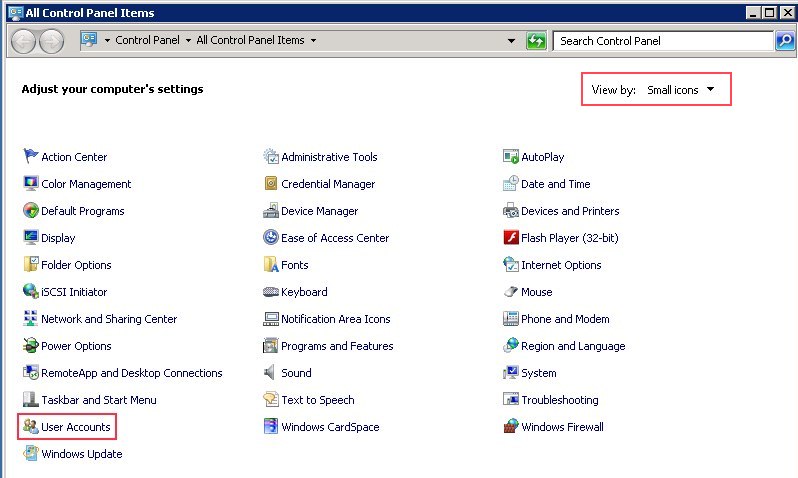
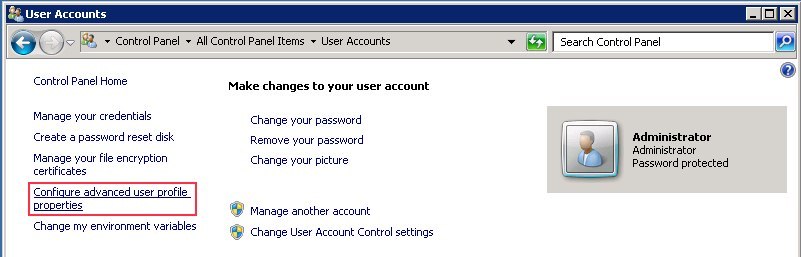
Inside User Accounts click on the Configure advanced user profile properties link on the left panel. It will popup User Profiles dialog.
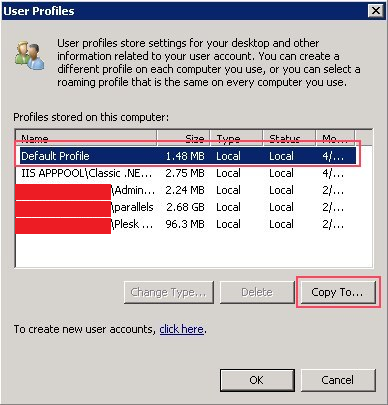
Inside User Profiles dialog, select the Default Profile and then click Copy To button. It will pop up the Copy To dialog.
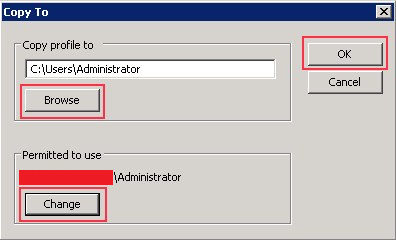
In Copy profile to section, browse and select the path C:\Users\Administrator and in Permitted to use section click change and select the Administrator user. Then click Ok.
Now the Confirm Copy message box will pop up with the message – “C:\Users\Administrator already exists. The current contents of this directory or this file will be deleted during this operation. Are you sure you want to continue?”. Click Ok to confirm.
Now logoff from Administrator account and login again. Now the account will use the permanent profile path C:\Users\Administrator and everything should be fine.
About ASPHostPortal.com:
ASPHostPortal.com is a hosting company that best support in Windows and ASP.NET-based hosting. Services include shared hosting, reseller hosting, and sharepoint hosting, with specialty in ASP.NET, SQL Server, and architecting highly scalable solutions. As a leading small to mid-sized business web hosting provider, ASPHostPortal strive to offer the most technologically advanced hosting solutions available to all customers across the world. Security, reliability, and performance are at the core of hosting operations to ensure each site and/or application hosted is highly secured and performs at optimum level.