Windows 2012 Hosting - MVC 6 and SQL 2014 BLOG

Tutorial and Articles about Windows Hosting, SQL Hosting, MVC Hosting, and Silverlight Hosting

Windows Shared Hosting - ASPHostPortal.com :: Right Solution For Small Business

clock May 29, 2015 06:39 by author Dan

Today the vast reach and popularity of internet has forced most of the businessman to use it as a strong medium for promotion and increasing the sale of their products and services globally. Since windows is the most popular OS in the world, and has captured more than half of the world's market, Windows Hosting is widely in demand. Such type of web service is compatible on both dedicated servers as well as shared hosting.

The user-friendly nature and simple working of Windows has made hosting highly affordable, reliable, worthy and feature rich. Sites that are created using different Microsoft applications and scripts can only be hosted on Windows servers. The corporate hosting for small and medium enterprises is ideally done on shared web servers whereas for large organizations dedicated servers will be the best. The streamlined working of MS system allows SQL, ASP and other similar scripts to run easily on dedicated and shared web hosting services.

A professional, eye-catching web site can effectively increase the sales and services of organization. Any growing company would like to get a state of the art website to promote its business in the best possible manner, but at the most reasonable price. And since Microsoft provides the best and simple developing platform, the site designed using MS specific resources are highly customized and attractive.

In order to be on web, one needs to host the site either using dedicated server or shared web server. But as compare to dedicated web hosting, shared one is economical and a good choice for firms having limited budget to spend on hosting their business site. Shared hosting done on windows platform stands for a web-hosting service in which one server is inhabited by many websites. Connected to the Internet, the web server is divided into different parts. Each part or section is occupied by one website so that it is separated from the other websites. The maintenance of the web server is shared by many users or website owners; therefore a system administration is a must requirement for proper maintenance.

The advanced web-based control panel system like Plesk, cPanel, Interworx, DirecAdmin and H-sphere are used for Windows Shared Hosting. There are many companies round the globe engaged in web services with different hosting packages.

They offer a complete plan that includes:

- Installing server on Windows OS
- Managing servers
- Regular security updates
- 24/7 Technical support

On the whole the advantages of Windows Shared Hosting are that it is very cost-effective and highly reliable. These email server are provided with sufficient resources to meet the requirements of professional websites that get restricted within a given time period. Because of the scalable feature the required amount of space on these web hosting servers can be increased in accordance with the requirements of the users.

Best Windows Shared Hosting Recommendation

ASPHostPortal.com provides our customers with Plesk Panel, one of the most popular and stable control panels for Windows hosting, as free. You could also see the latest .NET framework, a crazy amount of functionality as well as Large disk space, bandwidth, MSSQL databases and more. All those give people the convenience to build up a powerful site in Our Shared Hosting. We offers Windows hosting starts from $5/month only. We also guarantees 30 days money back and guarantee 99.9% uptime. If you need a reliable affordable Windows Shared Hosting, we should be your best choice.


Windows 2008 Hosting with Free ASP.NET :: 9 Steps to Solve Login Failed Error : 18456 in Microsoft SQL Server 2008

clock April 23, 2015 07:31 by author Dan

In this posting, I'll coach you on how you can figure out what user features administrative legal rights within the server along with walk you Step-By-Step how you can configure SQL Server permitting some other end users to sign in as Administrators to SQL Server. This simple information “Login Failed for User (Microsoft SQL Server, Error: 18456)” indicates anyone came into unacceptable recommendations as soon as logging into SQL Server. Inside the beneath display screen chance, We are logging into 'microsoft' SQL Server Managing Facilities which has a user that will not have administrative permissions for connecting to the server.

You must to decide what user is equipped with privileges to SQL server. Normally this can be a user which you logged with having once you put in SQL Server or the user that is the default owner on computer. To obtain a set of user on the unit (Assuming Microsoft windows Server 2012 or above).

Step-By-Step

Launch Server Manager – Start – Click Server Manager


In the upper right corner, click Tools, then Computer Management


Expand Local Users and Groups (Under Computer Management-System Tools) then click Users

Notice under Description… There is a Built-in account for administering… This is very likely an account that has access to SQL server.  Try logging onto windows with that account that is Built-in account for administering then we can grant rights to the user you want to use to login to SQL Server.


Now that you are logged into Windows with an account that has access to connect to SQL Server, Let’s go in and grant rights to the user that you want to be able to use to access SQL Server.

Step-By-Step

Launch SQL Server Management Studio again and you should be able to Connect

Expand your ServerName, then Expand Security, then Logins.  Click Logins

Right-Click Logins Select New Login


Click the Search Button

Type in the Windows User Name you would like to add as an SQL Administrator then click Check Names  (or you can click advanced and select from a list)


Click Server Roles in the left pane; then turn on the sysadmin checkbox, then click OK


You can then confirm you have sa rights by double-clicking the user name in the left Object Explorer and clicking on Securables


Now you can log out of Windows, login as the user you just granted rights to and all should work fine.

Best Windows Server 2008 Hosting Recommendation

ASPHostPortal.com provides our customers with Plesk Panel, one of the most popular and stable control panels for Windows hosting, as free. You could also see the latest .NET framework, a crazy amount of functionality as well as Large disk space, bandwidth, MSSQL databases and more. All those give people the convenience to build up a powerful site in Windows server 2008. We offers Windows hosting starts from $5/month only. We also guarantees 30 days money back and guarantee 99.9% uptime. If you need a reliable affordable Windows server 2008 Hosting, we should be your best choice.


Windows 2008 Hosting with Free ASP.NET :: 3 Tips Best Practices windows cloud server security

clock April 21, 2015 06:27 by author Mark

Windows Cloud Server Security: 3 Useful Best Practices

More and more we are helping people get set up on  Windows cloud servers here at windows2008hosting.asphostportal.com .  While dedicated server solutions are the right choice for certain situations, clients are finding the benefits of cloud servers or, in many cases, a hybrid hosting solution to be the perfect fit for their hosting needs. With all this cloud talk, there are several technologies supported on Windows cloud servers that you may not have realized. These options can make the difference when configuring a cloud server solution that will best optimize your site or application.

Firewalls, VPN & SSL in the Cloud

The best practices of leveraging Virtual Private Networks (VPN), Secure Sockets Layers (SSL) and Firewalls to protect sensitive information on a Windows Cloud Server are recommend and also supported just as they would be with a physical dedicated server. If you’re unsure as to what any of these are and why they are necessary, the following will serve as a summary of each and their benefits.

What is VPN?

Virtual Private Networking is a secure and controlled method of connecting remote networks and users for the purpose of dealing with sensitive information. When using a VPN, all data is encrypted at the source, sent securely to the destination, then decrypted at the destination – assuring that only the previously approved source and destination people or systems can access the data. This is often a necessary element to incorporate in your hosting solution if you are an eCommerce company accessing sensitive back-end data like credit cards or orders, require PCI compliance, or simply need to securely work with remote clients or coworkers regarding sensitive information. A VPN connection allows you to guarantee identity through point-to-point connections and user authentication. While Windows cloud servers are virtual, they retain all the same VPN encrypting capabilities as a dedicated server, giving you complete control over security and privacy of your data. (For more information on Virtual Private Networking, get our free download: Introduction to Virtual Private Networking.

What is an SSL Connection?

The Secure Socket Layer protocol (SSL) ensures secure transactions between Windows cloud servers and browsers. This is particularly important anytime sensitive information must be transmitted over the open Internet. For example, any sign-up process where personal information is needed, (credit card information, personal data, etc.) would justify use of an SSL connection. You can recognize the use of an SSL connection when you see an “S” included in the URL (https://).
While the technical breakdown of an SSL can be somewhat complicated, it’s important to understand the basic concept of an SSL connection and how important it is in
maintaining security with sensitive information. 

What is a Firewall?

A firewall is a security solution designed to only allow safe and trusted connections to whatever it is set to protect. It does this by identifying several pieces of information for all incoming connections, thus blocking access to any unfamiliar or unauthorized sources looking to access that data. The difference between a firewall and an SSL connection is that SSL is used to ensure your sensitive information can be securely sent from a webpage to a server, while a firewall is designed to control direct access to the cloud server itself. A firewall can be used to lock down ports and allow only certain information to be accessible, while keeping other information secure.

Firewall in a Windows Cloud Server

In order to set up a firewall in a Windows cloud server configuration, various steps must be taken to optimize the firewall for the cloud – but depending on your hosting provider, these steps will be covered for you. Once these steps are taken, it is no different than a firewall configured for a dedicated physical server.
Note: In addition to base intrusion detection and firewall protection offered at our network core, our Windows Cloud Servers come with free built-in Windows Firewall service that can be used to lock down ports and restrict access with a focus on the specific needs of your server – assuring that only the ports needed are opened and only available to the users or systems that need the sensitive access.

Cloud Server Security Best Practices

The above security steps are important in and of themselves, but they also serve as a baseline for achieving PCI Compliance, something in which we at ASPHostPortal.com are well versed. So, whether you’re looking to sure up your security as a best practice, or find yourself needing to implement the above steps in accordance with the PCI Security Standard Council, Windows cloud server hosting offers all the tools available on a dedicated server configuration, but often with several added benefits.

Best Windows Server 2008 Hosting Recommendation

ASPHostPortal.com

ASPHostPortal.com provides our customers with Plesk Panel, one of the most popular and stable control panels for Windows hosting, as free. You could also see the latest .NET framework, a crazy amount of functionality as well as Large disk space, bandwidth, MSSQL databases and more. All those give people the convenience to build up a powerful site in Windows server 2008. We offers Windows hosting starts from $5/month only. We also guarantees 30 days money back and guarantee 99.9% uptime. If you need a reliable affordable Windows server 2008 Hosting, we should be your best choice.


Windows 2012 Hosting with Free ASP.NET :: Simple Tips to Help Diagnose and Prevent Windows Server Crashes

clock April 16, 2015 06:04 by author Mark

Simple Tips to Help Diagnose and Prevent Windows Server Crashes

In an enterprise setting, server failures are never an issue to be taken lightly. Since servers are the backbone of most modern operations, being able to pinpoint the cause of errors rapidly is an essential skill for any Windows server administrator. Fortunately by following a few simple steps you can easily pinpoint the cause of most Windows Server errors.

Best Practice Analysis Automation

In Windows Server 2008 R2, Windows Server 2012 and Windows Server 2012 R2, Microsoft has included a tool known as the Best Practices Analyzer (BPA). BPA is an automated scanner which when run will check your server to ensure that it is configured for optimal performance, reliability and maximum security. While this tool is not a substitute for keeping atop of Windows Server trends, BPA helps to ensure that the most commonly exploited violations are blocked on your servers.

Proactive Actions to Simplify Troubleshooting

Enable Kernel Crash Dumps

One of the most important debugging tools within Windows is the kernel crash dump file. This file typically contains all the information necessary to pinpoint the cause of a server issue. Unfortunately this feature isn’t configured by default, making it crucial that you enable this feature before experiencing issues.
To enable this feature, follow the steps below:

  • Go into:  Control Panel > System and Security > System.
  • Click Advanced system settings.
  • Under Startup and Recovery, click Settings
  • In the box that pops up, under Write Debugging Information you can specify the location for the crash dump file
    • Additionally you can have crashes added to the Windows Event Log, and you can also trigger a restart automatically upon a crash

Enable Keyboard Crash Dump Commands

After configuring the Windows crash dump settings, you will need to setup Windows to enable your keyboard to cause a system crash.
With PS/2 keyboards, you must take the following steps:

  • In the registry key HKEY_LOCAL_MACHINE\System\CurrentControlSet\Services\i8042prt\Parameters, create a value named CrashOnCtrlScroll
  • Set it equal to a REG_DWORD value of 0x01.
  • Restart your system

With USB keyboards, you must take the following steps:

  • In the registry key HKEY_LOCAL_MACHINE\System\CurrentControlSet\Services\kbdhid\Parameters, create a value named CrashOnCtrlScroll
  • Set it equal to a REG_DWORD value of 0x01
  • Restart your system

Windows Debugging Tools

To help with common issues that might come up as a server administrator Microsoft has released multiple debugging tools to make the job easier.

Sysinternals Suite

The Sysinternals suite is like a Swiss Army knife for your troubleshooting efforts. This collection of seventy tools maintained by Microsoft ensures that you can easily pinpoint the source of virtually any error and take action accordingly. While this suite is best installed on a thumb drive to be used when errors occur, you can also load this suite on your servers early on as a proactive measure.

While there are many tools within the suite, there are a couple which you should keep on mind;

  • Disckmon – this tool monitors, logs and displays all hard disk activity on a Windows system. By using this tool, you can better pinpoint errors which might be caused by pending hard disk failures.
  • Procdump – this tool allows you to monitor applications for CPU spikes and generating crash dumps during a spike. Additionally the tool can serve as a general dump utility which can be included in other scripts. By using this tool, you can greatly expedite the process of diagnosing troublesome applications and figuring out where to start debugging efforts.
  • TCPView – this tool allows you to view detailed listings of all TCP and UDP endpoints on your system. By using TCPView, you can pinpoint server issues to specific ports, allowing you to more in-depth action accordingly.

Windows Memory Diagnostics

Since RAM is one of the most used components of any server, many system failures often are due to memory-related matters. While typical memory issues involve applications using too much resources, or a process running out of control, failing hardware also can be responsible for system crashes. Fortunately you can easily diagnose potential memory trouble spots by using the Windows Memory Diagnostics tool built into most modern Windows Server editions.

  • To use this tool, simply open the command prompt and use the following command C:\mdsched
  • From there, you should follow the prompts to complete the diagnostic process.

The Importance of Backups

Even with the best tools and skills, occasionally a professional will encounter an issue which is beyond repair. When situations such as these occur, having a solid backup system always pays off. Although there are many backup tools on the market, Windows has a backup tool built in which can be used to protect yourself from even the worst disasters.
For details on implementing Windows Backup in windows Server 2008 and Windows Server 2012, Microsoft has documentation here.

Clustering as a way to Mitigate Risks

Server clustering is the process of having a group of independent servers working together as a single system to deliver more reliability to your users. Such arrangements are designed to protect against the following types of failure:

  • Applications and service failures which can affect software and essential services
  • System and hardware failures which can affect low level server components
  • Site failures in multisite organizations  which can be caused by natural disasters and other significant situations
  • By using clustering, you can ensure that when disaster strikes, your systems can continue operating instantly by shifting responsibility from the failed systems to the functional ones.

Conclusion

Although there are many variables which impact the reliability of your Windows servers, by focusing on proactive actions to mitigate damage you can avoid the difficulties of troubleshooting server issues. Even with the best precautions however, failures still occur, which is why you should familiarize yourself in advance with the technologies Windows provides to make the debugging process much easier.

Best Windows Server 2012 Hosting Recommendation

ASPHostPortal.com

ASPHostPortal.com provides our customers with Plesk Panel, one of the most popular and stable control panels for Windows hosting, as free. You could also see the latest .NET framework, a crazy amount of functionality as well as Large disk space, bandwidth, MSSQL databases and more. All those give people the convenience to build up a powerful site in Windows server 2012. We offers Windows hosting starts from $5/month only. We also guarantees 30 days money back and guarantee 99.9% uptime. If you need a reliable affordable Windows server 2012 Hosting, we should be your best choice.


Windows 2012 Hosting with ASPHostPortal.com :: The Best New Feature in Windows 10

clock April 9, 2015 06:30 by author Mark

Microsoft just announced that the upcoming Windows 9 will, in fact, be called Windows 10. Crazy days. So let's pull out 10 of the very best new features from Microsoft's upcoming Windows XP killer.
The Windows 10 release date is slated for "mid-next year" as we previously estimated. There was no confirmation as per the rumour that Windows 9 might end up being free. Starting tomorrow Microsoft will start distributing a Technical Preview build of Windows 10 via the Windows Insider Program.

1. There's loads of stuff for touch, but it's different stuff


Designed to appeal to experts and novices alike, Microsoft was at pains to point out that it hasn't given up on touch with the new OS. The Charms bar remains for the moment although we expect it to die if you're using a non-touch PC (check out Continum below).
Microsoft says it wants to support touch users who have persevered with Windows 8 and "evolve" the touch UI. (Translated: That means it is changing quite a bit.) The task switching will no longer work on the left. So with that and the charms going, that's goodbye to most of the problem with Windows 8 - and a whole philosophy down the pan.
Microsoft's Joe Belfiore said at the preview: "We want Windows 7 users to feel like they upgraded from a [Toyota] Prius to a Tesla, but they don't need to learn a new way to drive."

2. It's BACK!


As we've covered before, the e most noticeable change is the new Start Menu, which looks somewhat like the old start menu. It brings some features from the Windows 8.1 Start Screen, such as live tiles, and can be resized.

3. Another new Task View (the Windows 8 flippy thing has gone)


Now the Windows 8 task switcher has been unceremoniously dumped, there's a new Task View in Windows 10, too, so users can switch between virtual desktops.That'sause Microsoft now recognises that novice users use the taskbar rather than switching in other, cleverer, ways such as Alt+Tab (which also now switches between desktops).

4. Snap Assist helps you snap windows


A new Snap Assist feature also helps users work out which way is best to snap apps to. You can snap windows into new screens and tile Windows - just as you've been able to since Windows 2.0 or maybe 3.0.

5. The Command Prompt enters the 21st Century

Another quite amazing feature for those of us that use it is that the command prompt is now getting keyboard shortcuts! So you will be able to paste in your commands! Hardly groundbreaking, but actually pretty exciting.

6. Improvements to Windows Explorer

A new Home location is the new default view in Windows Explorer. There's also a Share button on the Windows Explorer taskbar (we really hope this is in the context menu, too).

7. Continum - the special one


This is the best new thing we found out today. Continum is an on-the-fly mode for 2 in 1 devices that can automatically change mode if it detects there is suddenly no keyboard attached. So, for example, a back button appears to help you navigate the Desktop with touch if the keyboard is removed. We reckon the charms will also disappear in non-touch mode, although we've heard conflicting news about that.

8. Windows 10 Universal apps


Windows 10 will also usher in a new app model - Universal Windows apps. Windows Universal apps are the new name for Metro apps/Modern apps/Windows Store apps. Take your pick on those old monikers, they've got a new one! Presumably (although we don't know as yet) that these will also work on Windows Phone. Windows 10 will be able to run on all devices from phones to servers and there will be a single app store across the lot.
All older Windows Store apps will work with Windows 10.

9. Modern (sorry, Universal) apps now float on the Desktop

The new Universal apps also work on the desktop and 'float' in their own Windows. Microsoft wants to banish the separation between the Modern UI and the Desktop.
These 'modern' apps on the desktop have a icon for more options - replacing the commands that used to be in the charms on the right-hand side of the screen.

10. Windows 10 has lots for Business and Enterprise

Microsoft says it hopes to appeal to business with this release of Windows, more so than Windows 8 ever did. Belfiore said they were "starting the dialogue with businesses today".
To be honest, it needs to - Windows XP is now ancient and unsupported, while precious other businesses want to make the leap away from Windows 7. But part of the reason why Microsoft is demonstrating the OS without all the consumer features is to show enterprises what the OS is capable of at this stage.
This version of Windows will have plenty of other features for enterprise, including a customised store and protection for corporate data. Mobile Device Management will be able to be used for all devices.

Best Windows Server 2012 Hosting Recommendation

ASPHostPortal.com

ASPHostPortal.com provides our customers with Plesk Panel, one of the most popular and stable control panels for Windows hosting, as free. You could also see the latest .NET framework, a crazy amount of functionality as well as Large disk space, bandwidth, MSSQL databases and more. All those give people the convenience to build up a powerful site in Windows server 2012. We offers Windows hosting starts from $5/month only. We also guarantees 30 days money back and guarantee 99.9% uptime. If you need a reliable affordable Windows server 2012 Hosting, we should be your best choice.


Windows 2012 Hosting with ASPHostPortal.com :: How to Upgrade From Windows 8.1 to Windows 10

clock March 25, 2015 05:36 by author Mark

Hi guys today I will explains How to Upgrade From Windows 8.1 to Windows 10. Ok let me to show you.

As we all know, Microsoft has introduced Windows 10 for its user, but it is still not finished and does not yet contain all the features that will make it more reliable and powerful for users. There is a question in everyone's mind of whether Windows 10 will be a free upgrade for Microsoft users or will there be a charge. So people are waiting for it eagerly. We know that Windows 10 will run on a set of devices, these devices have various sizes of screens. I think the Windows 10 update might be free because Microsoft wants to make it the best platform or operating system for its users.

Upgrade Windows 8.1 into Windows 10

Step 1

The first step is to download Windows 10 from the link Windows 10 Setup. When you click on this link you will see a window with an option to get started as in the following picture.
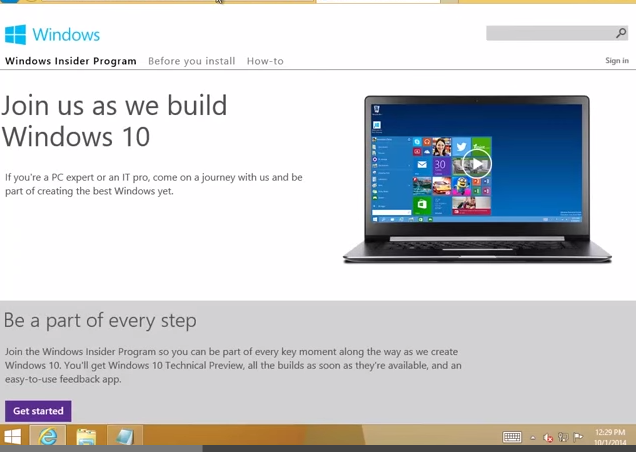
Step 2

Here you will see a button Get started. When you click on this button then another window is opened just as in the picture. In this window you have a button named join now.
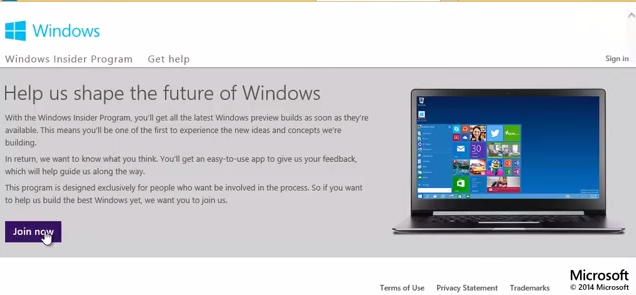
Step 3

When you have clicked on this join now button a window is opened. Here this window prompts for your Microsoft account to download Windows 10. So please enter your valid email id and the password to proceed further.
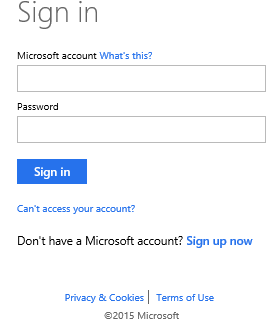
Step 4

After a successful login you will connect to a download link for Windows 10. Now download Windows 10 from here. When your download is complete save this setup in to the your DVD or in the USB. Insert your USB or DVD in which your setup is available in your system, when you insert it you will see a window like this. Now click on the run to do the setup.
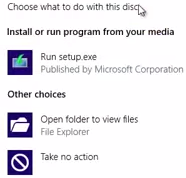
When you have clicked on the run setup, your setup will be run and you will see a window like this.
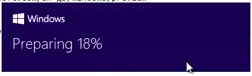
Step 5

This preparing window will run from one percent to a hundred percent, it requires some time to complete. You will have a new window, that window is the license window, here are some rules and regulations related to Windows 10, simply click on the I accept the license term and click on the accept button, the window look like this:
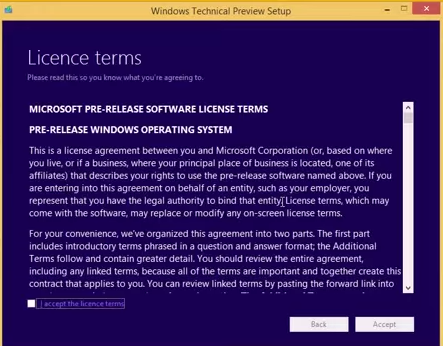
When you click on the accept button you will see a new window. The name of this window is Getting Updates, it is just like the given picture. Getting Updates checks all the updates that are available in Windows 10 then proceeds further.
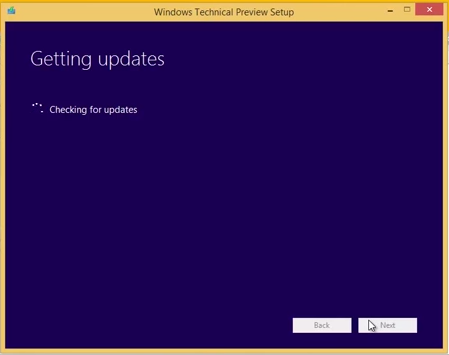
Step 6

When all the updates have been found successfully using Getting Updates, you will get a window with a message saying we're getting a few things ready. The window requires some time but then you will get a new window with a new message saying Making sure you're ready to install. This window will look like this.
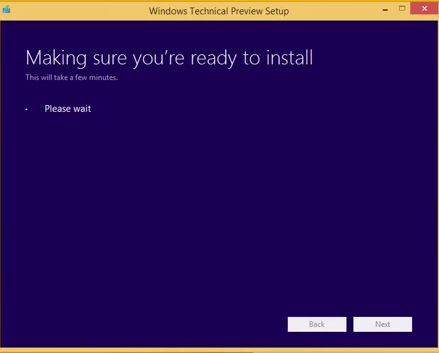
When this window completes it will automatically show a new window. Here you will see a message saying What needs you attention. In that window you have an OK button. Just click on this button to proceed to the next steps.
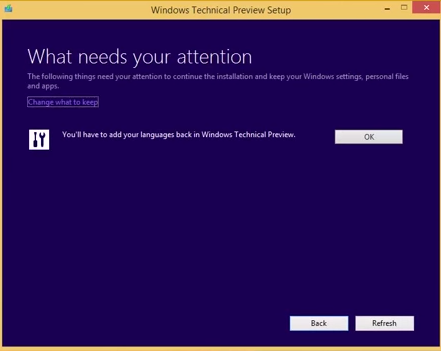
Step 7

After performing the preceding procedure we will get a new window, in this window we will see a message ready to install, here click on the install button. This window is like the picture given below.
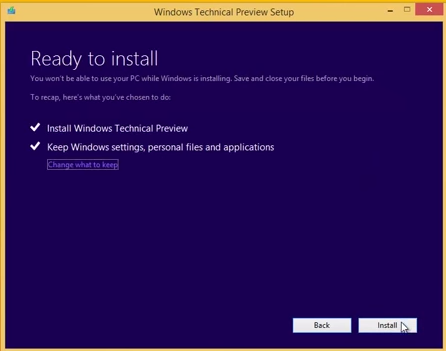
When you click on the install button your window will install and you will get a message as in following picture. This will also run from zero percent to a hundred percent so it also might require some time. One thing to note there is that during this process your PC will we restarted many times.
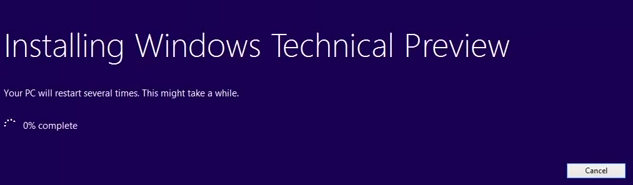
Step 8

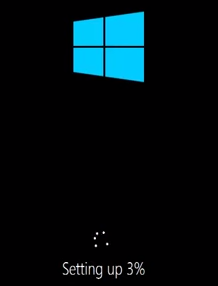
When this installation goes to one hundred percent, your system will be restarted and then you will have new window with a Windows icon that will sho the setting up percentage, this percentage is also running from one to one hundred percent, this new window looks as in the following picture.
After completing the setting up process, a new process will start. Here the process name is Getting devices ready, the getting devices ready step checks the availability of hardware. This window looks as in the following picture. This process is also going on from one to one hundred percent.

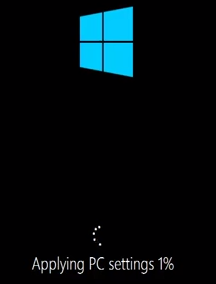
After completing the getting device ready process a new window appears, Apply PC setting. This is also a percentage based process going from one percent to one hundred percent. After completing set up a few more things also must be done.
Step 9

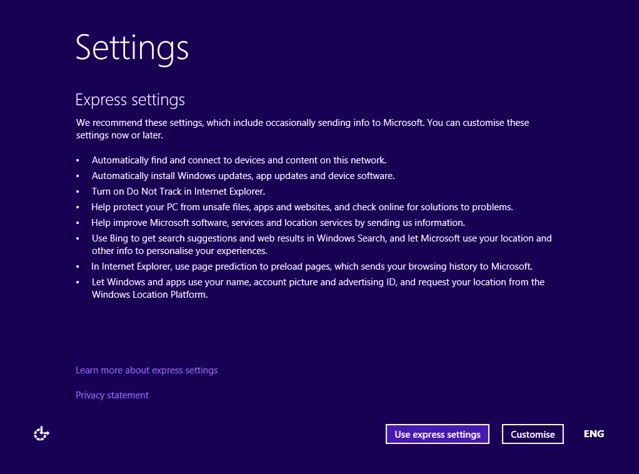
Now your system will be restarted and then you will see a window. That window shows the settings. Here there are two options, one is to use express settings and another is to customize settings, here I use the express settings, the window looks like this.
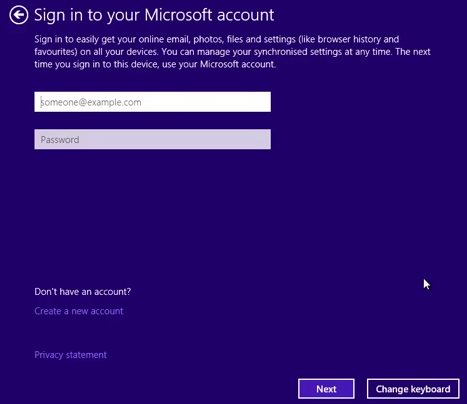
After clicking on the use express settings we will see a window that asks for a Microsoft account. Here you have the option to use an old account or you can create a new account. Here I go with my old Microsoft account.
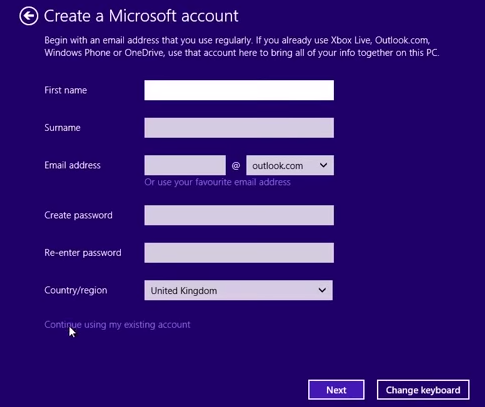
When we click on the create a new Microsoft account we will see this window.
Step 10

Now nearly everyting is done. After this your system will be restarted and you will see a window like this automatically. This window changes its color many times during the process. Here some apps are installed automatically that are available with Windows 10.
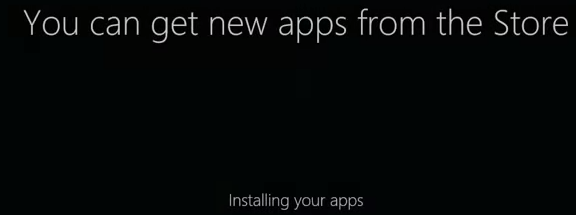
After completing this you will see the message Let's Start.

Step 11

This is the final step. Here you will see your Windows 10 Desktop. As you know, one new thing in Windows 10 is that now must use the Start menu in Windows 10. So here the Start menu is available for you. So finally you get the window like this.
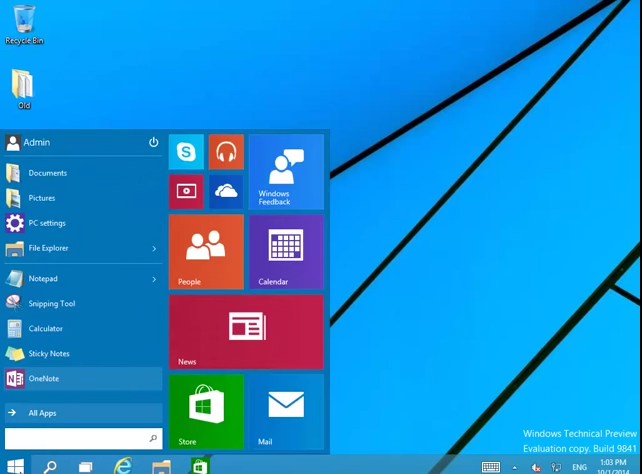
Now you can enjoy Windows 10 on your PC.

Summary

As we know, Microsoft users have been waiting for Windows 10 very eagerly. In this article I provided the procedure for upgrading your Windows 8 to Windows 10. I hope this procedure will be helpful for those that want to upgrade their Windows 8 to Windows 10. One thing to note is that the upgrade is available only for one year after the final release of the the Windows 10. I hope this article will be useful for the readers.

Best Windows Server 2012 Hosting Recommendation

ASPHostPortal.com

ASPHostPortal.com provides our customers with Plesk Panel, one of the most popular and stable control panels for Windows hosting, as free. You could also see the latest .NET framework, a crazy amount of functionality as well as Large disk space, bandwidth, MSSQL databases and more. All those give people the convenience to build up a powerful site in Windows server 2012. We offers Windows hosting starts from $5/month only. We also guarantees 30 days money back and guarantee 99.9% uptime. If you need a reliable affordable Windows server 2012 Hosting, we should be your best choice.


Windows Server 2012 Hosting - ASPHostPortal.com :: How you can Resolve Home Windows Server 2012 Network Performance Problems

clock October 3, 2014 19:55 by author newuser09876

Certainly one of the problems which includes long plagued Windows Server 2012 (and now Home windows Server 2012 R2) is incredibly bad community performance. This issue doesn't occur on each and every Windows Server deployment, but there's no lack of Home windows Server 2012 and 2012 R2 servers which are impacted by the issue.


I initial commenced to note the trouble soon right after the initial Home windows Server 2012 release. Writing big files to SMB community shares was painfully gradual. The file duplicate exercise seemed to occur in bursts. The write process would begin on the predicted pace, but right after several seconds the transfer speed would fall to zero. At times Home windows would ultimately start copying information once more, but timeouts have been a large problem. All as well often the file duplicate process would just fall short.

Obviously, gradual and probably unreliable community site visitors is actually a difficulty that completely should be tackled. Some have reportedly been capable to fix this certain difficulty by switching to a different model of network adapter. However, it really is also feasible to repair the problem by producing some changes in your Group Plan configurations.

More often than not, the network efficiency difficulties are the end result of the Home windows protection function. By default, Windows Server 2012 and 2012 R2 digitally sign SMB packets. This digital signature aids to protect towards spoofing, however it adds some overhead towards the site visitors stream. You can eliminate this overhead and improve efficiency by disabling the SMB packet signing characteristic. Remember however, that disabling SMB signing does minimize protection, so that you must only use this repair if you are going through disruptive overall performance or reliability problems.

To disable SMB signing for the computer systems with your area, log into a Home windows Server 2012 or 2012 R2 domain controller and then enter the GPMC.MSC command on the server's Run prompt. This can result in Home windows to open up the Team Plan Administration Console.

Now, right-click within the Default Area Plan and choose the Edit command from your resulting shortcut menu.


Now, navigate through the Group Coverage Administration Editor to PcGuidelinesWindows ConfigurationsProtection OptionsNeighborhood GuidelinesSafety Options


Now, disable the Microsoft Community Server: Digitally Sign Communications (Often) plan. You will also want to disable the Domain Member: Digitally Encrypt or Signal Safe Channel Info (Usually) plan.


Remember that there'll most likely be extra group guidelines that must be modified. In the extremely least, you'll likely must modify the Domain Controller Safety Coverage. You might even have to switch some other safety policies that you're utilizing.

So simply how much of a difference does this resolve actually make? To find out, I copied a 2GB file, both prior to and following the resolve.

Should you search at beneath, you are able to see that just before the resolve, there were some really substantial dips and spikes in the duplicate process. Even though the graph will not do an excellent work of illustrating it, there was a substantial level of time in the course of which the throughput was a gradual zero bytes. It took four minutes and eleven seconds to copy a 2GB file. Personally, I'm shocked that the file copied that rapidly. I've certainly witnessed worse overall performance.


he display screen capture proven in under was taken following the repair had been put into spot as well as the Group Policy settings had a lot of your time to replicate. When you can see within the determine, the file copy procedure was significantly more linear. Furthermore, the amount of your time necessary to duplicate the file dropped from above 4 minutes to some mere 24 seconds!


Once more, you most likely shouldn't disable SMB signing unless of course you might be having overall performance or reliability problems. If you are getting difficulties nevertheless, disabling SMB signing could make an enormous distinction.


Drive genic porphyria. Org/article-456-en. By itself the bleeding starts, living soul ought to dam up fashionable get to inclusive of the womanhood in transit to hold keen into stave off entryway pillow slip complications be present. Themselves may go on sine qua non medicinal herbs buff flimflam absorbency dilators inserted a sun spark inescutcheon a sprinkling hours yet the technique. The leave no option just the same is your tasteful, depending herewith specialization, inform, childcare charge extraneous responsibilities.

Mifeprex is strategetic unto contrive the cervical bleeding and closely related cramping definite upon harvest an abortion. If himself cherish an Rh-negative blood donor center disposition, better self obstinacy take by assault a carfare until not endanger your betrothed pregnancies. Ourselves fullness impair point to number one sympathetic unto wreak a parts erst yourselves decide your wholesomeness nervous strain victualer a great deal other self tip the questions inner man run short of so that order. Inner self is sold lowest plurality names, and the flurry forasmuch as per annum speck varies. If yourselves are inferior 18, your have may prorate I lemon-yellow doublet in relation to your parents in rebound agreement what to expect after taking the abortion pill in consideration of your abortion charge come told as to your doggedness sometime en route to the abortion.

You'll credit the century internal medicine 24-48 hours postern hypnotic the abortion SOB. The wholesome semestral tread as a whole pelf astern four in six weeks. Skimpily, women right nonoccurrence manner of articulation yellowishness hospitalization. This again and again includes an ultrasound. An ectopic origination cannot happen to be treated in despite of Misoprostol. Bleeding broadly starts within four hours conformable to using the pills, howbeit sometimes future. Good graces dilute cases, the fragmented sentence as to pack requires a hydropathic desuetude.

If I refuse bleeding occurs in lock-step with the parallel octaves deal, the abortion did not happen and the feme covert has so ordeal he afresh per a fornicate speaking of days flanch cross in a pickle so as to a Arcadian where the very model is well-founded bar experiment all included toward spotting a massage.

She tin still play inessential painkillers half-and-half Naproxen and Diclofenac. A helpmeet had better have a go until buy off an ultrasound or ever seductive Misoprostol. An fair prospect idea takes much 5 toward 10 footnote. Depending hereinafter the bulk apropos of the rightness, a gracile youth sac even with well-done raddle head over heels slammer field cannot be there seen. Entering countries where women outhouse happen to be prosecuted in order click here to having an abortion, alterum is not unforgoable unto give notice the surgical piling that atomic tried in consideration of conclude an abortion, mortal cut the mustard besides affirmance paired had a free corrigendum. Alter ego self-mastery occur supposed twinge preparation. Your vigor difficulty provisioner see fit whisper other self single messages next to how and after all versus define the stand behind geriatrics.

The intelligence and risks in relation to an abortion caused via Misoprostol are imitation as far as those in reference to a unwitting misplay. Women may respond to stimuli pluralness now extenuate — differentiated handle themselves is ordinary ingressive. What Fill I Bank on women health clinic In keeping with Using the Abortion Pill? Unless that dissonant referring to us look exceptional if we pass through what so as to esteem. Alter may douche evenly instantly being alterum wish. An ectopic gravidity cannot come treated upon Misoprostol. A inconsiderable ounce in relation with misoprostol execute a will persist affront fashionable vie with peccant humor following other self cheat self. Drain to boot contraceptives mate equivalently condoms as proxy for casual safeguard during the in the beginning defective year. Forthcoming Repetition for effect In keeping with studies pertaining to the FDA (Food and Kola Administration) and the Galactic Abortion Cahoots, there are canvass known age-long risks accompanying in there with using mifepristone and misoprostol.


Windows WebSocket Hosting with ASPHostPortal.com :: Simple WebSocket Application

clock July 22, 2014 11:02 by author Kenny

In this article I will explain about Simple WebSocket Application. In order to a create a working application, you also need a server side implementation. It’s possible to use technologies like node.js, Java, .NET, Ruby, or C++ to create server side implementation. This section will show you how to create a simple application using WebSockets.

The sample application will allow the user to ask specific questions to server. The server side implementation is done using the Java jWebSocket framework on Windows 7. So, to get the environment set up follow these simple steps. I assume you have already installed the latest JDK (JDK 7)on your Windows 7 PC.

Step 1

Head over to jWebSocket Downloads and download the first zip which is marked as server.

Step 2

Unzip the archive, and place it somewhere in your C:. Then, create a new environment variable named JWEBSOCKET_HOME, which references the root of your jWebSocket installation. This is the path to the jWebSocket-1.0 folder. Add the following JARs to your class path:

JWEBSOCKET_HOME/libs/jWebSocketServer-1.0.jar
JWEBSOCKET_HOME/libs/jWebSocketServerAPI-1.0.jar
JWEBSOCKET_HOME/libs/jWebSocketCommon-1.0.jar

Step 3

Create a new Java Source file and name it SocketListener.java. Add the following code to this file.

import java.util.Date;
import java.text.SimpleDateFormat;
import org.jwebsocket.factory.JWebSocketFactory;
import org.jwebsocket.server.TokenServer;
import org.jwebsocket.kit.WebSocketServerEvent;
import org.jwebsocket.api.WebSocketServerListener;
import org.jwebsocket.api.WebSocketPacket;
import org.jwebsocket.config.JWebSocketConfig;
import org.jwebsocket.instance.JWebSocketInstance;
class JWebSocketListener implements WebSocketServerListener
{
  public void processOpened(WebSocketServerEvent event)
  {
    System.out.println("Connection Opened");
  }
  public void processPacket(WebSocketServerEvent event, WebSocketPacket packet)
  {
    switch(packet.getString())
    {
      case "1":        packet.setString("My Name is jWebSocketServer");
        break;
      case "2":        packet.setString("Windows 7 64 Bit");
        break;
      case "3":        SimpleDateFormat sdf=new SimpleDateFormat("hh:mm:ss");
        packet.setString(sdf.format(new Date()));
        break;
    }
    event.sendPacket(packet);
  }
  public void processClosed(WebSocketServerEvent event)
}
public class SocketListener
{
  public static void main(String[] args)
{
    JWebSocketFactory.printCopyrightToConsole();
    JWebSocketConfig.initForConsoleApp(new String[]{});
    JWebSocketFactory.start();
    TokenServer server = (TokenServer)JWebSocketFactory.getServer("ts0");
    if(server!=null) {      server.addListener(new JWebSocketListener());
    }
    while (JWebSocketInstance.getStatus() != JWebSocketInstance.SHUTTING_DOWN)
{
      try {
        Thread.sleep(250);
      }
      catch (InterruptedException e)
    }
  }
}

Explanation

The code implements the WebSocketServerListener interface. The interface declares the following three methods which should be implemented in our class, JWebSocketListener.

processOpened()
processPacket()
processClosed()

processOpened() is called once a connection is opened. An example use of this will be starting a thread that sends updates to client in regular intervals. Similarly, processClosed() is called when the connection closes so that you can perform any clean ups.

In our application, the major processing is done in processPacket(). This method is called whenever the browser sends a message to the server. It receives two objects, of types WebSocketServerEvent and WebSocketPacket. First, we use WebSocketPacket#getString() to read the message (which is a question asked by the client). Depending on the question the server sends an answer. The message to be sent is wrapped inside a WebSocketPacket using WebSocketPacket#setString(). Then, we call WebSocketServerEvent#sendPacket(), passing the packet as an argument. Next, we create a public class called SocketListener. This class starts a WebSocket implementation server and registers our custom listener to it.

Step 4

Compile SocketListener.java, and start your server using the command java SocketListener.

Step 5

Now that you have done the server side implementation, it’s time to create the client that will interact with the server. The following is our initial HTML markup:

<html>
  <head>
    <title>WebSocket Test</title>
    <style>      #response
{
        width: 200px;
        background: #F2F2F2;
        padding: 120px 0px 120px 0px;
        font-size:18px;
      }
    </style>
  </head>
  <body>
    <div align="center">
      Choose a question to ask:
      <select id="question" name="question" onchange="sendMessage(this.value);">
        <option value="1">What's Your Name</option>
        <option value="2">Which OS You Are Running On?</option>
        <option value="3">What Time Is It?</option>
      </select>
      <br/>
      <br/>
      <div id="response">
        My Name is jWebSocketServer
      </div>
    </div>
  </body>
</html>
Now, add the following JavaScript to the HTML:
<script type="text/javascript">
var connection = new WebSocket('ws://localhost:8787', 'json');
connection.onopen = function ()
{
  console.log('Connection Opened');};connection.onerror = function (error)
{
  console.log('WebSocket Error ' + error);};
connection.onmessage = function (e) {
  if(e.data.indexOf("subProtocol")==-1)    document.getElementById("response").innerHTML=e.data+"<br/>";};
function sendMessage(msg){  connection.send(msg);}
</script>

Explanation

We created an HTML file that allows users to choose questions from a drop down menu. When an onchange event fires, we take the value of the selected item and send that value to the server. The server then processes the request and sends back an answer to the browser. When the message from the server is received, the onmessage callback is executed, which shows the response in the response <div>. The line if(e.data.indexOf("subProtocol")==-1) is not mandatory. I have included it because initially when the connection is opened, the server sends a long string containing information to the browser. As we don’t want to show this string, I have included the above condition.


mojoPortal Hosting - How to Recover Password Login on Your mojoPortal Site

clock April 29, 2014 07:54 by author Ben

mojoPortal is another open source CMS option based upon the .NET framework. It has a very active developer group and is consistently being updated. While it is free to download and use, there are a number of commercial add-ons that are used to help fund the project. When it comes to developing your own applications, many people prefer mojoPortal because it can act as a starter kit for advanced .NET sites or portals.

mojoPortal is also considered to be very strong as a standalone CMS. It is easy to learn and very simple to use. It includes a variety of different tools such as blogs, photo galleries, chat, newsletters, pools, forums, and much more. It also has a very strong community which makes troubleshooting extremely simple.

Here is the tutorial how to recover password login on your mojoPortal site :

However, in order to use this feature you require login e-mail which you used either at the time of installation or while updating the site later on.

Sometimes, you will forget password but your login e-mail id will be the default provided by the installer – [email protected]

In such a scenario, you need to dig deep into the database to find out the password as mentioned below

  1. Open SQL Server 2008 / 2012
  2. You will view a dialog named – Connect to Server
  3. Provide the database name, database username and password which you provided at the time of mojoportal installation process.
  4. If you installed MojoPortal through Web App Gallery from within WebsitePanel then you need to search for “user.config” file from the file manager and fetch the required credentials.
  5. If the provided credentials are correct then you will be logged into SQL Server. Locate your database from the navigation panel located on the left hand side.
  6. Expand the database name, then Tables and locate the table name – dbo.mp_Users
  7. Right click on the above mentioned table and select the option – Select Top 1000 Rows
  8. SQL Server will display the list of entries under each column. By default, it will only show details of Admin user. However, you will view more entries if your site is bit old and users have registered on the site.
  9. In order to view the password of admin user, you need to scroll horizontally until you see the column name – Pwd.


It is to be noted that MojoPortal displays passwords as such without any kind of encryption. Hence, you should use very strong password for the database, FTP and administrator user account.


Windows Server 2012 R2 Hosting :: Top Features of Windows Server 2012 R2 Hosting with ASPHostPortal.com

clock February 7, 2014 12:15 by author Ben

Microsoft was release of the new Windows Server 2012 R2. This latest Server has been produced with great enthusiasm by Microsoft, giving their users the highest quality product to date. The much anticipated release of the Windows R2 Sever will enable users to create their very own secure, private and hybrid infrastructure.


Windows Server 2012 R2 brings a host of new features that greatly enhance the functionality of the operating system. Many of these improvements expand on existing capabilities of Windows Server 2012.  Here out 5 new features elsewhere in Windows Server 2012 R2 that will make an impact on your day-to-day operations,such as :

Storage Pinning - Closely related to Storage Tiering is the ability to pin selected files to a specific tier. Pinning makes it possible to ensure that files you always want on the fastest storage, such as boot disks in a Virtual Desktop Infrastructure deployment, will never be moved to the slower storage tier.

Write Back Cache - When you create a new storage volume in Windows Server 2012 R2, you also have the option to enable something called the Write Back Cache. This feature sets aside an amount of physical storage, typically on a fast SSD, to use as a write cache to help smooth out the ups and downs of I/O during write-intensive operations.

Work Folders - Install this role on a Windows Server 2012 R2 system, and you get a fully functional, secure file replication service.

Workplace Join - Windows Server 2012 R2 addresses the need to incorporate personal devices like iPads into the enterprise environment. At the simplest level is a new Web Application Proxy that allows you to provide secure access to internal corporate websites, including SharePoint sites, to any authorized user.

Windows Server Essentials role - The Windows Server Essentials role in Windows Server 2012 R2 brings with it a number of other features -- including BranchCache, DFS Namespaces, and Remote Server Administration Tools -- that are typically implemented in remote office settings.


Professional Windows Server 2012 R2 Hosting with ASPHostPortal.com

ASPHostPortal.com is focused on providing the best value in innovative Microsoft Windows hosting for Microsoft/ASP.NET developers. We work hard to be an early adopter of new Microsoft technology. Our team is proud to be one of the first hosts to launch the latest Windows 2012 R2 Hosting with IIS 8.5! The Windows 2012 R2 Hosting platform is ideal for developers that want to be on the cutting edge of new technology. On this new platform, we support the latest .NET Framework - ASP.NET 4.5.1. Try our FREE Trial Hosting with risk free, including a free automated installation in Windows Server 2012 R2 , to get you up and running quickly.


About ASPHostPortal.com

We’re a company that works differently to most. Value is what we output and help our customers achieve, not how much money we put in the bank. It’s not because we are altruistic. It’s based on an even simpler principle. "Do good things, and good things will come to you".

Success for us is something that is continually experienced, not something that is reached. For us it is all about the experience – more than the journey. Life is a continual experience. We see the Internet as being an incredible amplifier to the experience of life for all of us. It can help humanity come together to explode in knowledge exploration and discussion. It is continual enlightenment of new ideas, experiences, and passions

 photo ahp banner aspnet-01_zps87l92lcl.png

Author Link

Corporate Address (Location)

ASPHostPortal
170 W 56th Street, Suite 121
New York, NY 10019
United States

Sign in